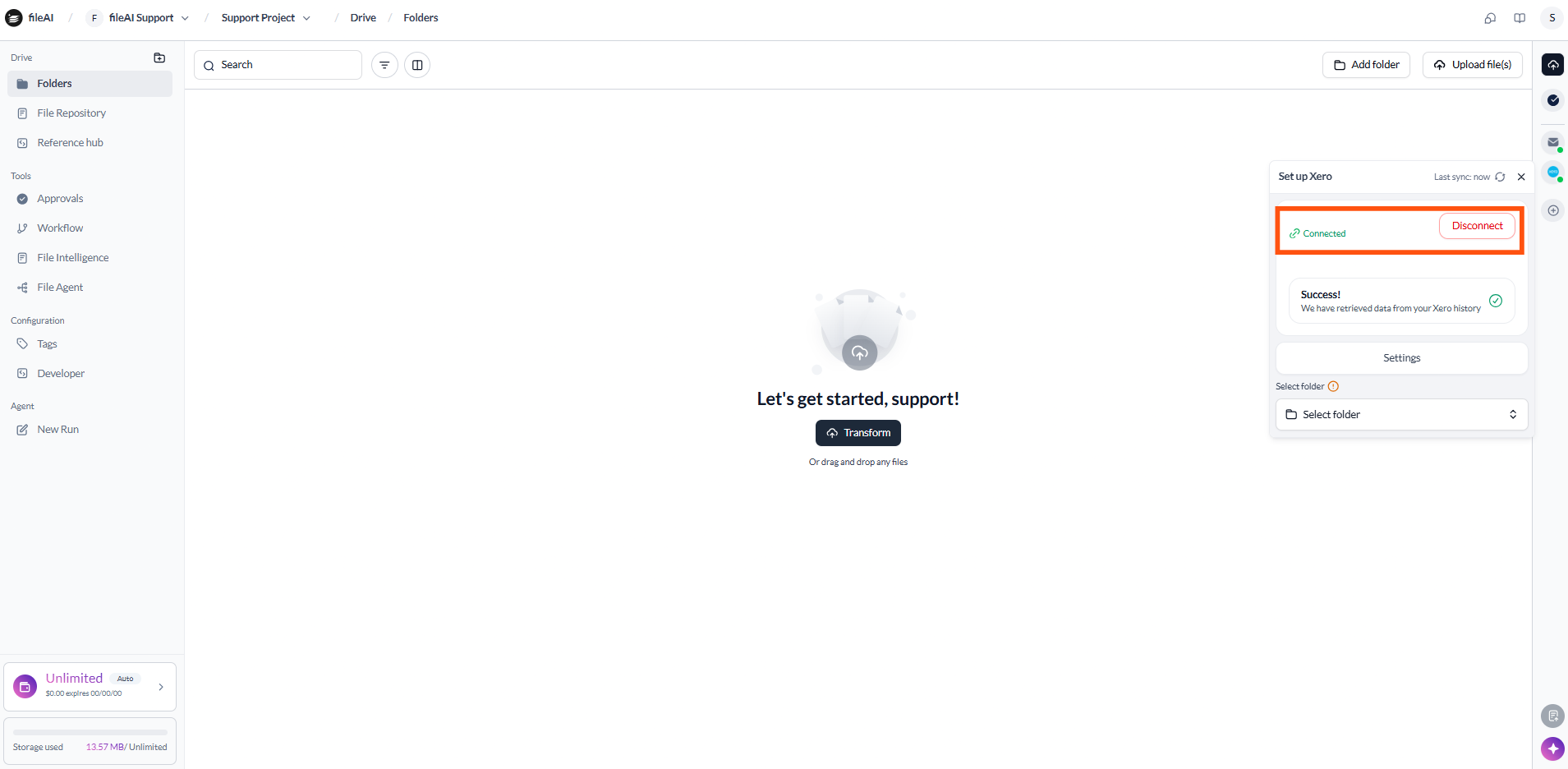

Overview
The Xero Export Integration allows you to connect your Xero organisation to fileAI and streamline the export of financial data. Instead of manually entering accounting information into Xero, you can send supported financial data directly from fileAI, helping reduce repetitive work and improve consistency. Once Xero is connected, you can export supported Purchase Invoices and Sales Invoices into Xero. Bank statement data can also be downloaded from fileAI in a Xero-compatible format for manual upload into Xero. The integration simplifies your accounting workflow, reduces manual data entry, and makes it easier to keep your financial records consistent between fileAI and Xero.Secure connection
Connect to Xero using Xero’s official OAuth2 authentication.
Direct invoice export
Export Purchase Invoices and Sales Invoices into Xero.
Xero-compatible bank statements
Download bank statement data in a format ready for Xero import.
Consistent mapping
Use configured accounts, tax codes, and tracking categories for exports.
Reduced manual work
Minimise repetitive data entry and improve workflow efficiency.
Export visibility
Review export status and identify issues when an export is unsuccessful.
How it works
Connect your Xero account
Connecting Xero only takes a few steps. You sign in directly through Xero and grant access to the organisation you want to connect.fileAI uses Xero’s secure OAuth2 authentication, so your Xero login credentials are never stored by fileAI.
1
Select Xero from Export Integrations
From Drive (File Repository), open the integration menu and select Xero from the available Export Integrations.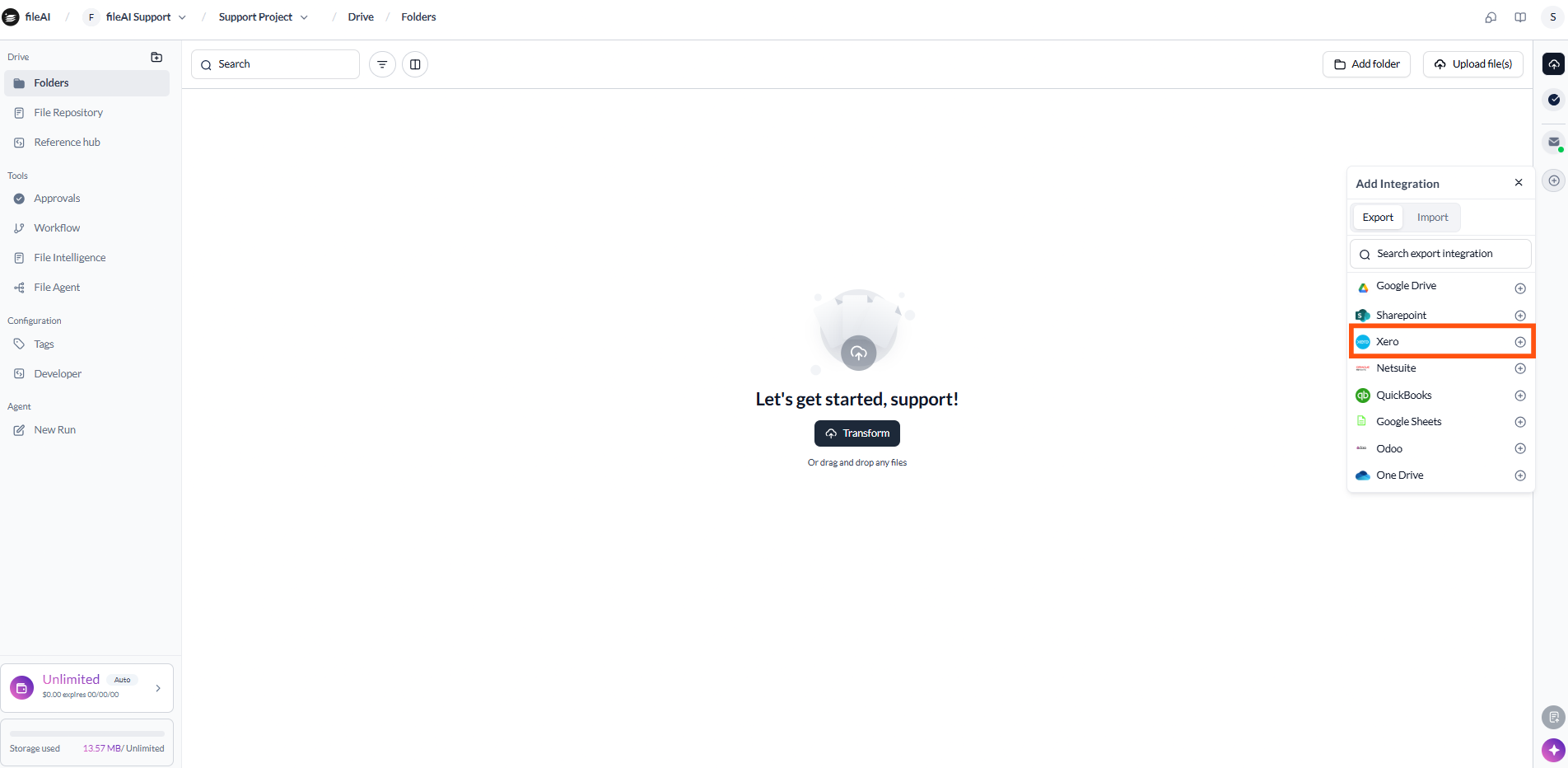
2
Sign in securely through Xero
You will be redirected to Xero’s secure sign-in page. Sign in with your Xero account to continue.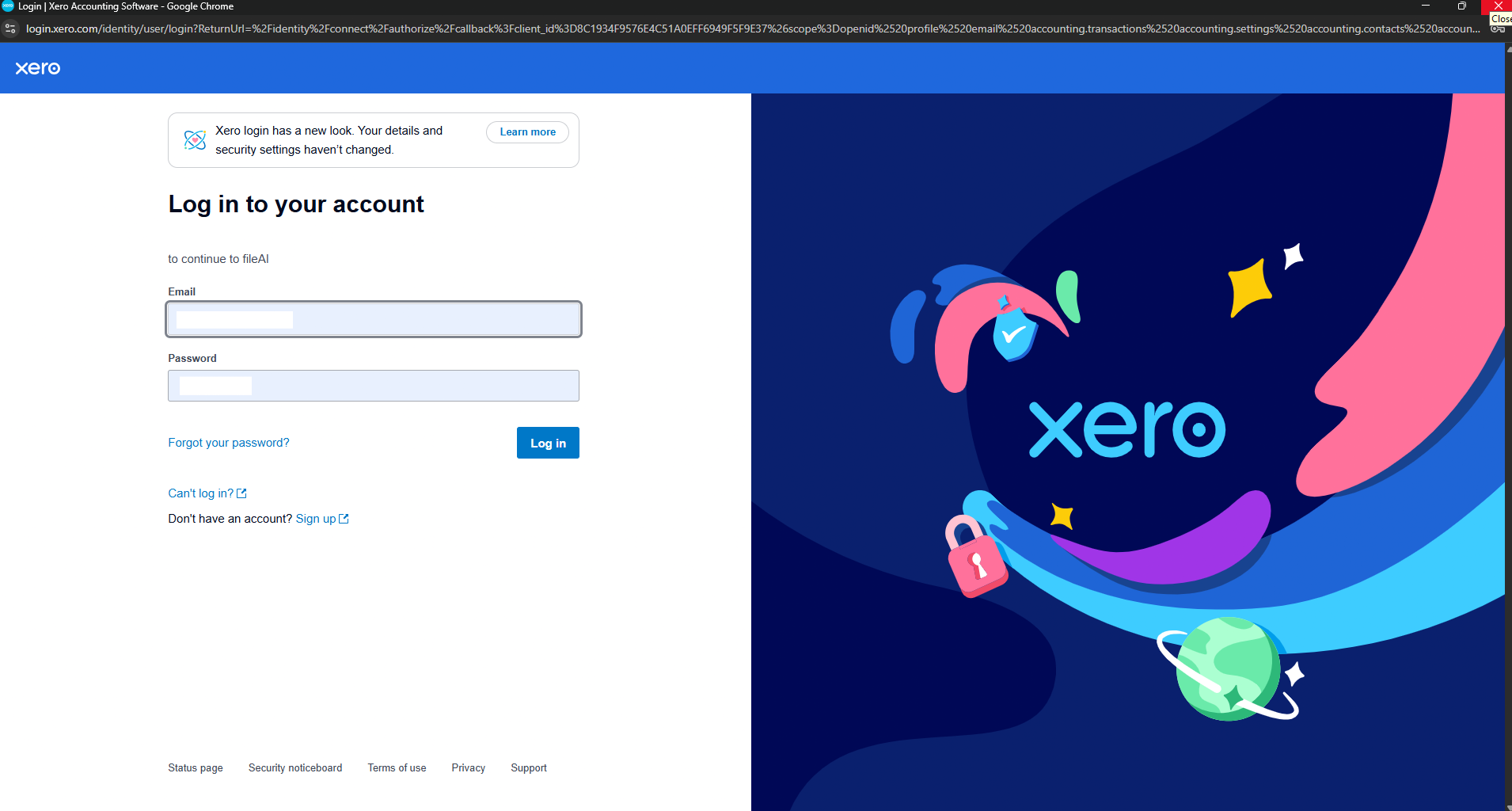
3
Select your organisation and allow access
Choose the Xero organisation you want to connect, review the permissions requested by Xero, and select Allow access.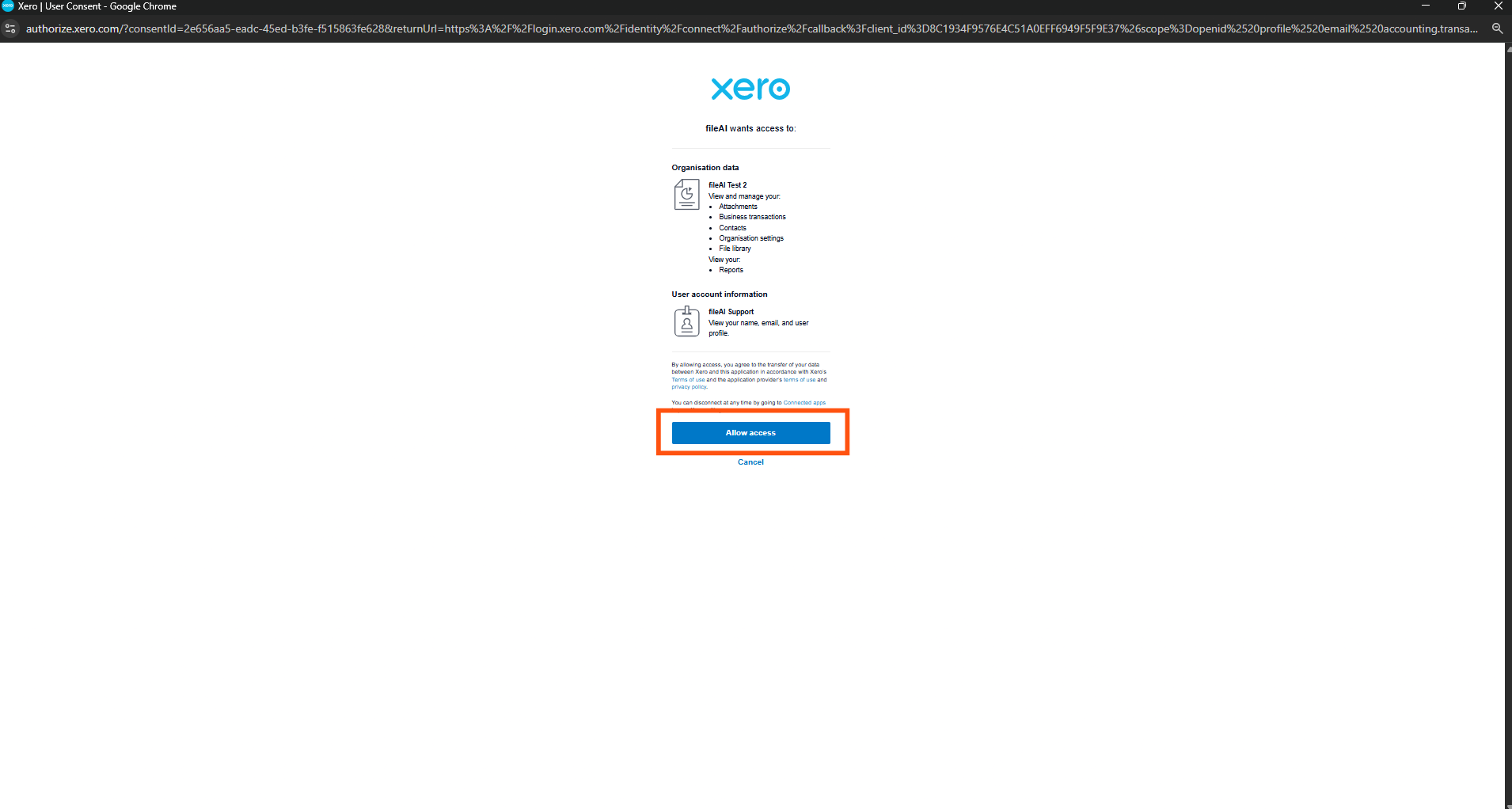 Once connected, the Xero export icon is displayed in the action bar.